

RuneScape: Dragonwilds supports crossplay between Windows PC, PlayStation 5, Xbox Series X|S, and Nintendo Switch 2. PC players can use Steam, the Epic Games Store, or the Jagex Launcher. The host must load a multiplayer world with crossplay enabled, enter that world, and share the invite code shown in the pause menu. Guests enter the code through the world browser.
The important limitation is that crossplay is not cross-save. You can use a character on one platform to play with friends on other supported platforms, but your save does not transfer to a different platform. A normal hosted world also remains tied to its host: an invite code lets guests join the running session, but it does not make that world permanently available when the host leaves.
Crossplay Platforms and Limits
All supported release platforms can meet in the same crossplay world. Storefront choice on Windows PC does not divide the crossplay pool.
| Platform | Crossplay support | Standard co-op role | Save limitation |
|---|---|---|---|
| Windows PC via Steam | Yes | Host or guest | Steam Cloud does not transfer the save to a console |
| Windows PC via Epic Games Store | Yes | Host or guest | Do not assume another PC storefront shares the same save or entitlement |
| Windows PC via Jagex Launcher | Yes | Host or guest | Do not assume another PC storefront shares the same save or entitlement |
| PlayStation 5 | Yes | Host or guest | Progress does not transfer to or from another platform |
| Xbox Series X|S | Yes | Host or guest | Progress does not transfer to or from another platform |
| Nintendo Switch 2 | Yes | Host or guest | Progress does not transfer to or from another platform |
Standard online co-op allows four players in total: the host plus three guests. A dedicated server is a separate hosting mode that supports up to six players. The Switch version covered here is Nintendo Switch 2.
How the Host Enables Crossplay
Crossplay is a hosting choice made when loading a multiplayer world. Do not assume that an existing world is crossplay-enabled merely because it has been used for online play before.
- From the main menu, choose Play, then enter the online world flow.
- Select the existing world your group will use, or create a new world.
- If editing an existing world, highlight it and open Edit Settings.
- Choose a multiplayer privacy setting. Friends selects a friends-only session, while Public advertises the world in the public browser.
- Enable the Crossplay option that appears for the multiplayer session.
- Confirm the settings and load into the world. The host must actually enter the intended world; remaining at the main menu does not create a joinable session.
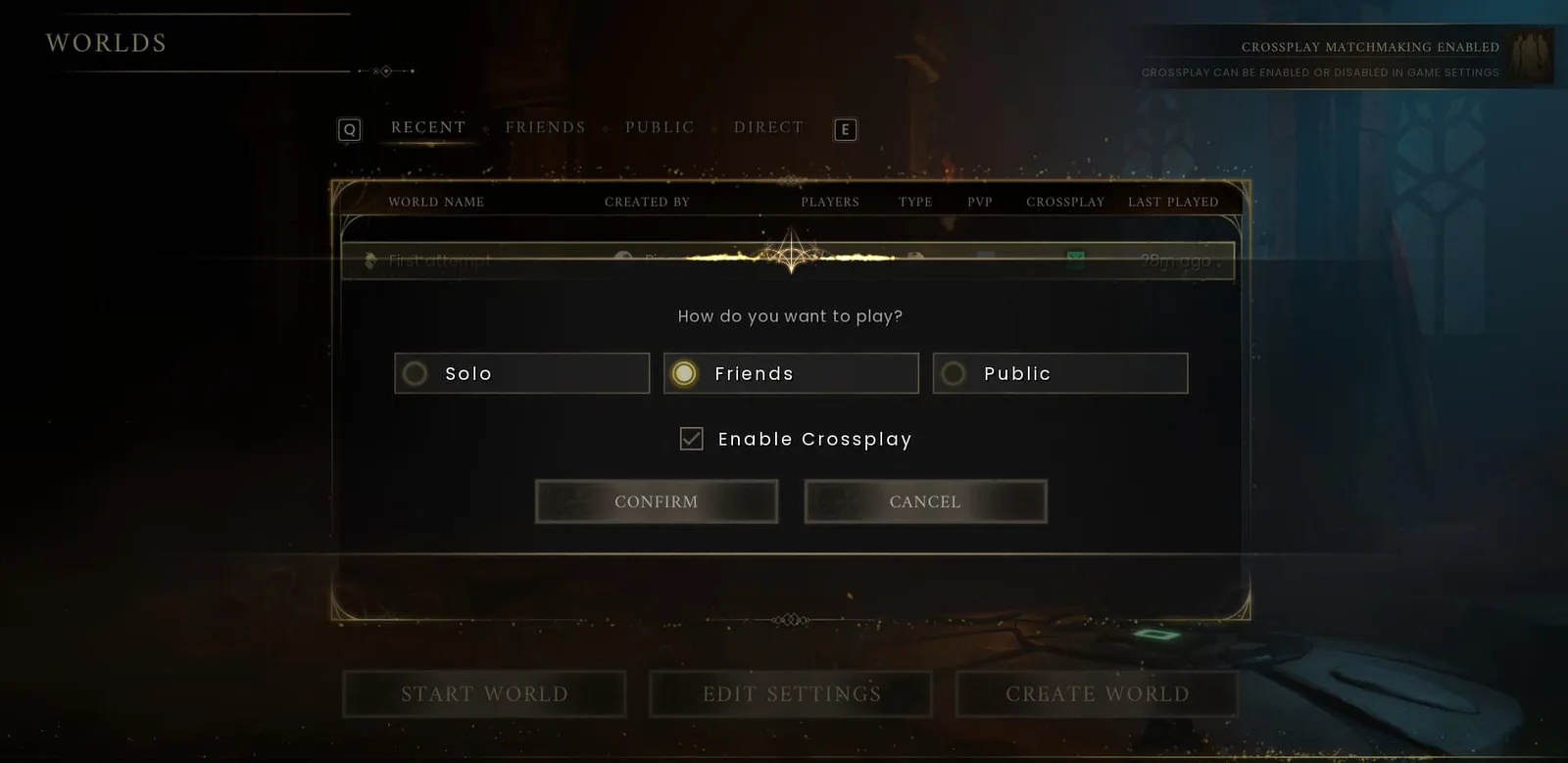
Choose Friends or Public and enable crossplay before loading the world.
The exact button prompts can differ between keyboard, Xbox, PlayStation, and Switch 2 controls. Follow the named menu functions rather than looking for one universal controller button. The useful confirmation is that the loading or settings dialog shows a multiplayer privacy choice and an enabled crossplay option before the host enters the world.
A password is optional for a multiplayer world. It is separate from the invite code: the code identifies the active world session, while the password controls access after that world has been found. If the host uses a password, guests need both values.
Find and Share the Host Invite Code
After the host enters the crossplay-enabled world, open the in-game pause menu. The current INVITE CODE appears near the top-right of that menu. It is an alphanumeric code separated by a hyphen.
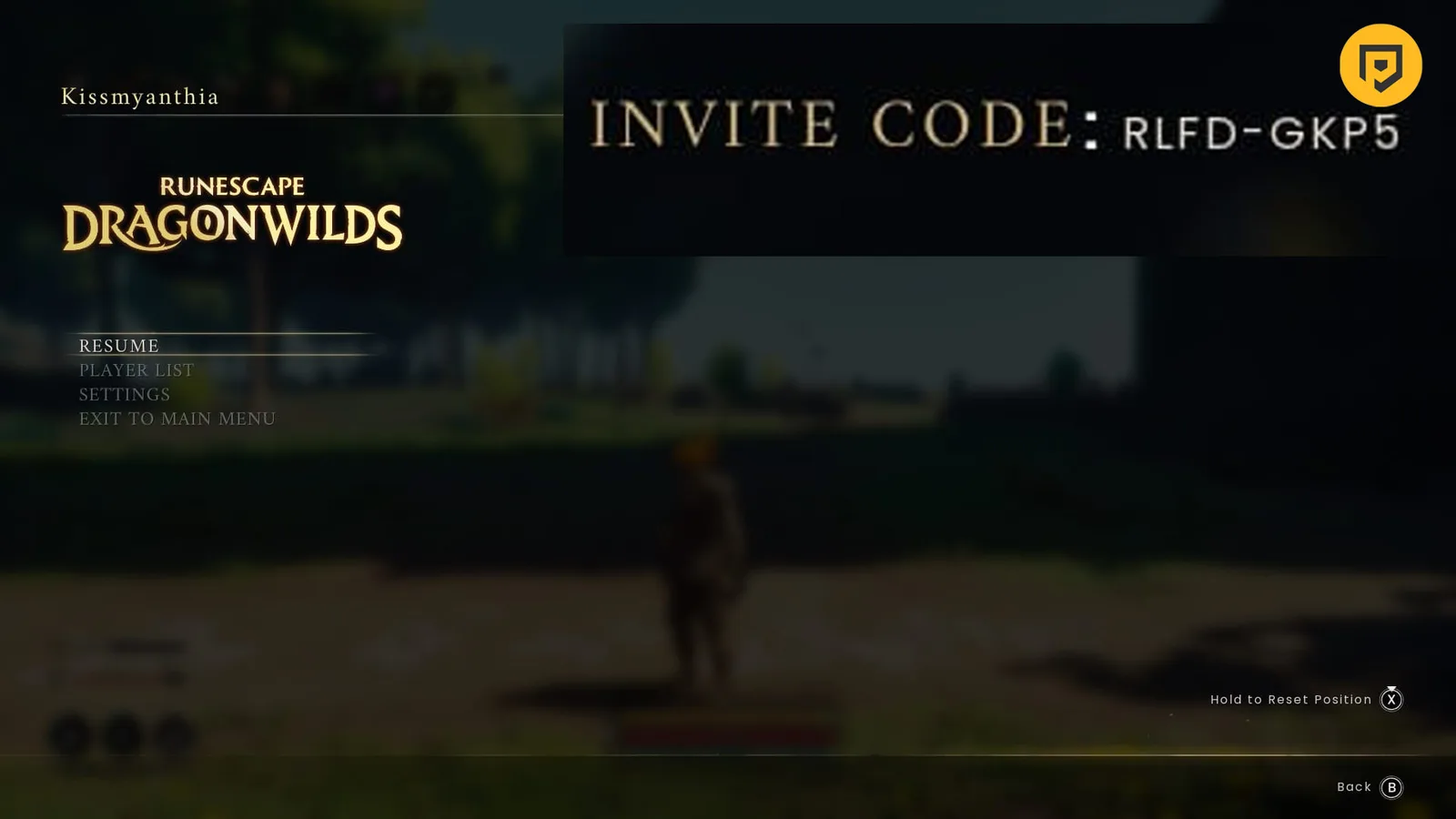
Share the code from your own running world; the code pictured here is only an example.
Send the code directly to the guests who should join. Treat the code shown in the current pause menu as authoritative. If the world has been reloaded, the session has restarted, or an older code fails, the host should reopen the pause menu and share the code currently displayed instead of repeatedly testing a saved message or screenshot.
Do not confuse the invite code with any of the following:
- The optional world password.
- The host's platform username or friend ID.
- A public world name.
- A dedicated server's network address.
Guests should not try to reuse the example code visible in a guide image. They need the code from their own host's live pause menu.
How a Guest Joins with an Invite Code
The invite-code route is the clearest method for a mixed-platform party because it does not require everyone to locate the same listing through platform-specific friend interfaces.
- Ask the host to confirm that the intended world is loaded and crossplay was enabled for this session.
- From the guest's main menu, choose Play and enter the online world browser.
- Select the Invite Code function shown in the browser. Its position or controller prompt can vary, so look for the function name rather than a particular button.
- Enter the code exactly as it appears in the host's pause menu, including the characters on both sides of the hyphen.
- Confirm the entry and follow the on-screen join prompts.
- If the world has a password, enter that password when the separate prompt appears.
A Friends or Public listing can provide another route into a world. Friends-only worlds belong in the friend flow, while public worlds appear in the public browser. The invite code is still useful when a cross-platform friend listing is unclear or the group wants to avoid searching through public worlds.
Normal Co-op Compared with a Dedicated Server
The two multiplayer modes solve different scheduling problems. They should not be treated as interchangeable versions of the same host button.
| Feature | Normal hosted world | Dedicated server |
|---|---|---|
| Maximum players | Four total | Up to six total |
| Who runs the world | A player hosting through the game | Separate server software on a supported computer or hosting service |
| Host must be in the normal game session | Yes | No, but the server must be running |
| Crossplay | Enabled when the host loads the multiplayer world | Enabled through the server's crossplay configuration |
| Best fit | A group that plays while one regular host is present | A group that wants a separately running shared world or more than four slots |
An ordinary invite does not transfer ownership of the host's world to a guest. It also does not turn the session into a permanent server. Choose the regular mode only if the group accepts that the designated host controls when that world is available.
For a dedicated server, crossplay must be enabled on the server side. Players can then locate the running world through the supported browser flow. For installation, ports, Owner ID values and save migration, follow the Dedicated Server Setup guide. These administration steps are separate from a normal four-player crossplay session.
When a dedicated server cannot be found, the relevant short checks are different from ordinary co-op. Search the exact running world name with matching capitalization under Worlds → Public, confirm that the server and clients use matching game versions, and inspect the server logs. Do not apply dedicated-server configuration steps to a player-hosted world.
Crossplay Does Not Transfer Saves
Crossplay answers who can join the same active world; cross-save answers whether one platform can load progress created on another. RuneScape: Dragonwilds supports the first but not the second across platforms.
For example, an existing Steam character can join a session containing PS5, Xbox Series X|S, or Switch 2 players. That does not place the Steam save on those consoles. Buying a console copy does not move that Steam character or its progress to the console.
Steam Cloud Save supports saves within the Steam version. It does not turn a Steam save into a PlayStation, Xbox or Switch 2 save. Treat storefront ownership and save support as separate from the ability to join a crossplay world.
This limitation does not prevent a mixed-platform group from sharing a crossplay session. Each player simply enters with the character available on the platform they are currently using. Plan to play together using the saves available on your respective platforms.
Connection Checks When a Friend Cannot Join
Start with session details before changing network settings. Most of these checks take less time than restarting every device, and they preserve the exact failure information if support is needed.
- Confirm the host is inside the intended world. A world selected in a menu is not necessarily being hosted. Ask the host to verify the world name after loading into it.
- Check the current session settings. The world must be loaded as Friends or Public multiplayer, with crossplay enabled for that hosting session.
- Read the current invite code again. Compare the guest's entry character by character with the code presently visible in the host's pause menu. Replace any code copied before the world was reloaded.
- Separate the code from the password. Passing invite-code validation does not remove a world password. If a second prompt appears, the guest needs the password chosen by the host.
- Check capacity. A normal hosted world supports four players in total. A dedicated server supports up to six. A valid code cannot create an extra slot in a full world.
- Compare available updates. Confirm that each player has installed the latest build offered on that platform. Platform update rollouts can occur at different times, so also check any official rollout notice before assuming the host has configured the world incorrectly.
- Record the exact failure. Keep the full error wording and note the host platform, guest platform, game versions, multiplayer mode, and whether the failure occurs before or after a password prompt.
For a PC player with a broader connection failure, supported basic checks include restarting the PC, power-cycling the modem or router for at least 30 seconds, using Ethernet where possible, and reducing other network traffic. Follow the platform provider's or internet provider's guidance when the issue appears to involve their service. These steps are starting checks, not guaranteed repairs, and PC instructions apply to the PC version; use the relevant console support instructions for a console connection issue.
Two launch-period patch histories can help prevent false diagnoses. Patch 1.0.0.5, dated September 25, addressed failures when joining worlds that already had more than two users, an Xbox-specific case with two users already present, a PS5 crash involving password-protected crossplay-world creation, and clearer Xbox privacy-setting notifications. Patch 1.0.0.6, dated September 29, restored Epic Games Store online crossplay and fixed a crash caused by selecting Online while offline.
Those entries describe dated fixes, not proof of the cause of a current failure. If the same-looking symptom occurs on a later build, preserve the current error and platform details instead of assuming the old bug has returned. An invite code or a different hosting method cannot by itself resolve a platform outage or a delayed patch rollout.