
A RuneScape: Dragonwilds dedicated server runs a persistent world independently of the game client, so the owner does not need to remain logged in while other players use the world. You can rent a managed server, run the free dedicated-server tool on a 64-bit Windows or Linux machine, or install it on a cloud computer.
For self-hosting, plan for 2 GB of RAM plus 1 GB for every connected player. A full six-player server therefore needs 8 GB. The default game port is UDP 7777, and the server will not start normally until you add your in-game Player ID as the Owner ID. The most important operational rules are to stop the server before editing its configuration, back up the save directory before updates, and keep the server build matched to every connecting client.
A dedicated world remains available when its owner leaves, but in-game time pauses when no players are connected. It is persistent hosting, not an unattended simulation that advances farms, respawns, and crafting for days while everybody is offline.
Dedicated server requirements
| Requirement | Supported value |
|---|---|
| Host operating system | 64-bit Windows or 64-bit Linux |
| Maximum players | 6 |
| Memory | 2 GB base plus 1 GB per player; 8 GB for six players |
| Default network port | UDP 7777 |
| Additional servers | Use 7778 for the next server, then continue with separate ports |
| Dedicated-server Steam app ID | 4019830 |
| Game client Steam app ID | 1374490 |
| Required identity value | The owner’s Player ID from the bottom of the in-game Settings menu |
| Main configuration file | DedicatedServer.ini |
| Public-browser search | Exact world name, including capitalization |
| Save directory | RSDragonwilds/Saved/Savegames |
These requirements apply to home and cloud installations. A rented host normally supplies the operating system, public network connection, and control panel, but you still need to configure the world name, Owner ID, passwords, backups, and updates correctly.
Choose a hosting method
The right method depends on whether you want the lowest setup burden or direct control of the machine.
| Method | Best fit | Main advantages | Work you still own |
|---|---|---|---|
| Managed game host | A group that wants a server online quickly | Web control panel, remote file access, and no home-router setup | Subscription cost, provider configuration, save backups, and checking updates |
| Home computer | A group with suitable spare hardware and router access | No game-host rental and full control over files | Electricity, uptime, firewall rules, UDP forwarding, updates, and backups |
| General cloud computer | An experienced administrator | Remote hosting without keeping a home PC on | Variable cost, operating-system setup, security, ports, updates, and backups |
Self-hosting is practical if your router and internet provider allow inbound UDP forwarding. If your provider prevents port forwarding, changing the game configuration will not solve the external connection problem. Contact the provider or use a remotely hosted machine instead.
Install the dedicated server on Windows
The dedicated-server tool is free and separate from the normal game client. You can install it through Steam on a Windows host or use SteamCMD on a Windows or Linux machine.
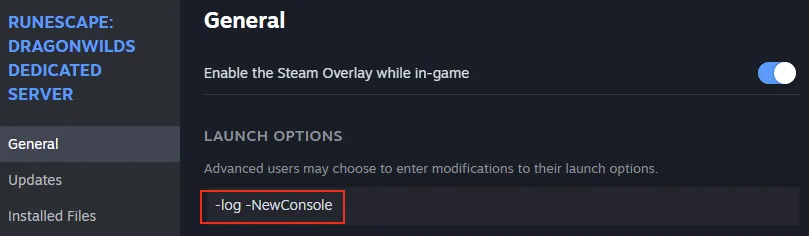
Use the Launch Options field for the dedicated-server diagnostic arguments.
Install through Steam
- Open Steam on the computer that will host the world.
- Find and install RuneScape: Dragonwilds Dedicated Server. Do not install the normal game client as a substitute for the server tool.
- Open the dedicated server’s Steam properties.
- Add
-log -NewConsoleto Launch Options. This opens console feedback that makes startup and connection failures easier to diagnose. - Start the server once so it can create its saved, configuration, and log directories.
- Stop it before changing
DedicatedServer.ini.
Install through SteamCMD
Choose an installation folder and run SteamCMD with an anonymous login and dedicated-server app ID 4019830. For example:
steamcmd +force_install_dir C:\DragonwildsServer +login anonymous +app_update 4019830 +quit
After the download completes, start the server executable with logging enabled. Run it once even if it stops because the Owner ID is missing; that first launch creates the folders you need to configure. When a game patch arrives, run the SteamCMD update again before expecting updated clients to find the server.
Steam installation is convenient for a Windows desktop. SteamCMD is more suitable for a headless computer, remote host, or installation that you want to update with a repeatable command. Both install the same dedicated-server product.
Configure DedicatedServer.ini
Never edit the configuration while the server is running. Runtime values can overwrite your changes when the process stops, making a correct edit appear to have been ignored.
On Windows, use:
RSDragonwilds\Saved\Config\WindowsServer\DedicatedServer.ini
On Linux, use:
RSDragonwilds/Saved/Config/Linux/DedicatedServer.ini
If the Windows configuration file or its parent directories do not exist, make sure the dedicated server has been launched once. The Windows values can be created from the corresponding Linux configuration structure when necessary.
Set these values before the normal startup:
| Setting | Required | What to enter |
|---|---|---|
| Owner ID | Yes | Your RuneScape: Dragonwilds Player ID from the bottom of the in-game Settings menu |
| Server Name | Yes | The label identifying the server host |
| Default World Name | Yes | The name used when the server creates its default world |
| Admin Password | Yes | A private password that grants access to Server Management |
| World Password | No | A join password; leave it empty only if the world should be open |
The Owner ID is the game’s Player ID, not a world name or the dedicated-server app ID. Launch the normal game, open Settings, and use the copy control beside the Player ID. Without this value, the server cannot complete normal startup.
Treat the Admin Password differently from the World Password. Anyone with the world password may join, while anyone who successfully enters the admin password receives administrative access. Do not reuse or publicly share the admin credential. A configured world password supersedes a password already stored in the world.
After saving the file, start the dedicated server and watch the console. A healthy startup should progress beyond the missing-owner error and begin running a game session. Keep the console open while performing the first connection test.
Make the server reachable
A server that works on its own machine is not automatically reachable across the internet. The host firewall, every router between the host and the internet provider, and the provider itself must allow the game’s UDP traffic.
- Allow the dedicated-server executable or UDP 7777 through the host operating system’s firewall.
- Give the host computer a stable local network address so the forwarding rule does not later point to another device.
- Open the router’s port-forwarding page.
- Forward external UDP 7777 to UDP 7777 at the host computer’s local address.
- If another Dragonwilds server runs on the same public connection, assign it a different port such as 7778 and forward that port separately.
- Restart the dedicated server after confirming the configuration.
- Test from the host or local network first, then ask someone outside the home network to test the public connection.
Use UDP for the forwarding rule. Opening an unrelated TCP rule does not replace the required UDP path. If multiple routers sit between the host and the internet provider, each router must forward the traffic correctly.
A server can appear in the public list yet still reject connections when forwarding fails. That symptom means discovery succeeded but the game traffic cannot reach the host. Recheck the destination address, firewall, UDP protocol, port number, and upstream routers. If all local settings are correct, ask the internet provider whether inbound forwarding is permitted.
Do not publish the host’s public address more widely than necessary. A world password limits game access, while the admin password must remain restricted to trusted administrators.
Find and join the server
Open the game’s Worlds screen, select the Public tab, and search for the exact world name. The search is case-sensitive. Players should search for the world name rather than assuming the separate Server Name is the browser key.
If the active save is named Dragonwilds_World1.sav, search for Dragonwilds_World1, without the .sav suffix. When you import an existing save, use that world’s original name. The Default World Name is mainly relevant when the server creates a new world because no save is present.
If the game offers direct connection, test the host machine with 127.0.0.1:7777 and another device on the same network with the host’s local address and port. A successful local connection confirms that the server process and basic configuration work, but it does not prove that internet forwarding works.
Players on supported platforms can use the cross-platform world, but the server host itself must run on supported 64-bit Windows or Linux hardware. After a patch, platform rollout timing can differ, so confirm that every client and the dedicated server are on matching builds before changing network settings.
Move an existing world to the server
You can continue an existing world instead of starting over. Preserve the original active filename: changing it can prevent the server from saving and loading progress correctly.
- Stop the dedicated server completely.
- Open the server’s
RSDragonwilds/Saved/Savegamesdirectory. - Copy every existing server save to a safe backup location outside the active directory.
- Empty the contents of the active
Savegamesdirectory, but do not delete the directory itself. - On the computer that owns the local world, open
C:\Users\YOUR-USERNAME\AppData\Local\RSDragonwilds\Saved\SaveGames. - Copy the desired
.savfile into the dedicated server’sRSDragonwilds/Saved/Savegamesdirectory. - Keep the
.savfilename exactly as it was. - Start the dedicated server.
- Search for the imported world’s exact name in the Public world browser.
- Join, leave, and rejoin to verify that character progress is retained.
- Restart the server and join again to verify that buildings and placed objects persist.
The last two checks matter. Seeing the world once does not prove that its next save will load correctly. If the server was previously started with a renamed active save, stop it and restore a copy bearing the original filename before continuing play.
Create a world with custom settings
World gameplay settings are established through a locally created world rather than by freely changing every rule in DedicatedServer.ini.
- Launch the normal game client.
- Create a new Standard, Custom, or Creative world with the desired settings.
- Enter the new world and wait until the nearby environment has loaded.
- Exit the world normally so its save is written.
- Back up the new local save and the server’s current saves.
- Stop the dedicated server and empty only the contents of its active
Savegamesdirectory. - Copy the newly created
.savfile into that directory without renaming it. - Start the server and verify persistence with a leave, rejoin, and restart test.
Perform this setup before the group invests time in the world. Replacing the active save later changes which world the server loads and can strand newer progress in another file.
Update the server and protect saves
Client and server versions must match. After an update or hotfix, an outdated server may disappear from the browser instead of displaying an obvious version error. The server build appears near the top of its logs, while the client build is shown in the game interface.
Use this update routine:
- Tell connected players that the server is stopping.
- Stop the process cleanly.
- Copy every file in
RSDragonwilds/Saved/Savegamesto a dated backup location outside the live directory. - Update through Steam or rerun the SteamCMD
app_update 4019830installation command. - Start the server with
-log -NewConsole. - Compare the server and client versions.
- Join, make a small verifiable change, leave, and restart the server.
- Confirm that the change remains before reopening the world to the group.
You may rename archived copies to make their dates clear, but do not rename the save file placed back into the active Savegames directory. Keep more than one generation of backups so a damaged or incorrectly updated save does not replace the only known-good copy.
Owner, admin, and regular-player permissions
Dedicated servers divide users into three practical roles:
| Role | How it is assigned | Available control |
|---|---|---|
| Owner | Player ID matches the configured Owner ID | Can ban or unban users whether they are online or offline |
| Admin | Player enters the Admin Password in Server Management | Can ban regular players who are online but cannot unban them |
| Regular player | Player joins the world normally | Cannot ban or unban the owner, admins, or other players |
Change the Admin Password if it is exposed. Players who know it can enter Server Management and retain admin status until the password is changed. Use the server-management interface for player moderation rather than expecting a broad console-command system.
Troubleshoot common server failures
| Symptom | Likely cause | Corrective action |
|---|---|---|
| Server stops during startup | Owner ID is blank or incorrect | Copy the Player ID from the bottom of the in-game Settings menu, stop the server, update the config, and restart |
| Configuration edits disappear | File was edited while the server was running | Stop the process, edit and save DedicatedServer.ini, then restart |
| Server vanished after a patch | Client and server builds do not match | Update app ID 4019830 and compare the versions shown by the logs and client |
| Search returns no result | Wrong name, capitalization, or world is not running | Search the exact active world name, case-sensitive and without .sav |
| Server appears but cannot be joined | UDP forwarding or firewall path failed | Verify UDP 7777 through the host firewall, every router, and the internet provider |
| Local connection works but remote connection fails | Server is healthy, but inbound internet traffic cannot reach it | Recheck the router destination address and ask the provider whether forwarding is blocked |
| Startup reports memory problems | Host allocation is too small | Apply the 2 GB base plus 1 GB per connected player requirement |
| Imported world opens but progress is lost after restart | Active save was renamed or the wrong save is loading | Stop the server, restore the original filename, and retest save persistence |
| New settings do not affect an imported world | The imported save retains its own world identity or settings | Create the intended world locally, then migrate that save while the server is stopped |
| Steam invitation does not connect correctly | Dedicated-server Steam invites are a known limitation | Find the exact world through the Public browser or use the available direct-connect option |
Server logs are stored under RSDragonwilds/Saved/Logs, with RSDragonwilds.log as the main diagnostic file. On a Windows installation, also check the corresponding directory beneath C:\Users\YOUR-USERNAME\AppData\Local\RSDragonwilds\Saved\Logs. Read the first startup error before changing several settings at once.
First-run verification checklist
Before treating the server as ready for regular play, confirm all of the following:
- The dedicated server is app ID 4019830 rather than the normal game client.
- The host is running a supported 64-bit operating system with enough RAM for the expected player count.
-log -NewConsoleexposes readable startup feedback.- The Owner ID comes from the in-game Settings menu.
- Configuration changes were made while the server was stopped.
- The world and admin passwords have different purposes and are shared appropriately.
- UDP 7777 reaches the host from outside its local network.
- Players search the exact active world name with matching capitalization.
- The server and all clients run compatible builds.
- The active save retains its original filename.
- Character progress, buildings, and objects survive both a rejoin and a full server restart.
- A current backup exists outside the live
Savegamesdirectory.
Once those checks pass, the dedicated world can remain available independently of its owner’s game client, with up to six players joining the same persistent save.